
Connect2 Guide to Live Streaming Kit for Pros

Live streaming has never been an industry for the faint of heart. Recent strides in technology, however, have revolutionized the business. Over the course of the pandemic, it’s become much easier to pull off. It’s always been a staple of my career and I’ve found its transformation incredibly exciting.
Now it’s how we bring in keynote speakers for conferences. It’s how news departments handle on-air interviews. It’s how gamers show off speed runs for massive audiences, and how a grandmother might show her family the steps required to bake her famous peanut-butter cookies. Let’s take a look at some production tips and gear recommendations that will help you execute your next live stream.
Here’s what we’ll cover:
- Capture devices
- Encoding software
- Switchers
- Microphones
- Other gadgets and gizmos
As always, be sure to check with your university’s equipment-lending programme before spending any money on gear!
Standard Operating Procedures
No matter what you’re broadcasting and to whom, many of the principles of live production still apply: Are you producing a clean video image? Does your lighting complement that image? Is your audio clear, crisp, and in sync? And then there’s the newest (and arguably most important) item on the checklist: Do you have a strong and stable internet connection?
It’s likely you’ll utilize multiple computers on your show, so be sure to use your most reliable and battle-tested machine to run your encoding software. This is your engine—it’s the single most important piece of hardware because it’s responsible for actually broadcasting your production.
Be sure to close out any non-essential programs running in the background, and keep an eye on CPU usage (I maintain 5-20% normally while streaming). If you’re running Wirecast as your encoding software, use a Mac. If you’re working with either vMix or OBS, then you’ll want to use a PC.
Tip: If any of your “shots” (Wirecast), clips, or playback features are animated, or if they’re showing live low-frame playback when active or when you mouse-hover over them, turn this feature off. It will greatly reduce your CPU usage.
Capture Devices
This is an essential piece of gear for streaming and one that needs to be carefully selected to match your needs. Capture cards are devices that (essentially) translate video signals into a language your computer understands. That language is then encoded by software or the device itself for live streaming or saved as a high-quality video recording. Here are a few solid recommendations for some of the top capture devices around.
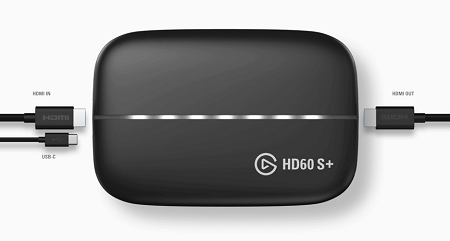
Elgato HD60 S+
At £170, this is the number-one-selling device on Amazon with over 5K positive reviews. It reliably captures 1080p video at 60 fps and can pass through 4K footage at 60 fps as well. This is an exceptional choice if you’re looking for functionality and utility, because the HD60 S+ works great with cameras too.
Be advised: There is a basic S version. I’ve had problems with it in the past, so be sure to get the S+.
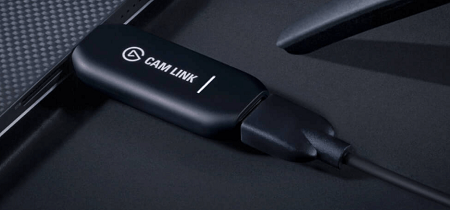
Cam Link 4k
It’s got “cam” in the name, so you know it’s game. This one is compatible with a laundry list of cameras (except, surprisingly, most Blackmagic offerings; it only lists the BMPCC4K currently), and it’s ready to work right out of the box.
While it’s great for capturing 4K footage at 30 fps, please hear me out—streaming at 4K is really only going to bring you problems. There will be a time, probably soon, when 4K streaming will be the norm. But, for now, 1080p at 60 fps is a beautiful, functional image.
The Cam Link 4K is roughly the size of a thumb drive, and it creates seriously mind-blowing results with higher-tier cameras. Consider ditching your built-in laptop camera, and get something like the A7S III from your school’s equipment lending programme.
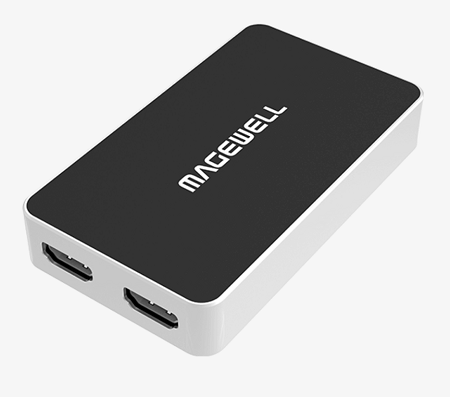
Magewell
This is the professional option. I had never heard of them until the pandemic started, and now I absolutely love them for their products which consistently work. If the job involves streaming, I will always have a few of these with me.
Tip: I do prefer a capture card that is powered through the USB. Just be careful if you’re using multiple simultaneously on the same laptop, as they can drain batteries faster than your power supply can recharge your computer.
Encoding Software
The software that ingests your video signal and streams it out live for the world to watch. Facebook live turning your cell phone into a live newscast is an example of encoding software. Here are some great options for making your stream look like the pros.
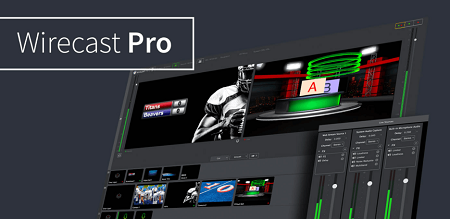
Wirecast
Not the most popular, if only because it’s more expensive than the competition and it works best with Apple (which is costlier than PC). It’s also kind of an oddball in that it doesn’t operate like a “normal” switcher, but rather more like a non-linear editing system.
For example, you “stack” shots, with the top shot being the most forward-facing layer. And while there are other little NLE-type quirks to consider, I’ll leave you with this instead—I personally use Wirecast, and I’m really happy with the software.
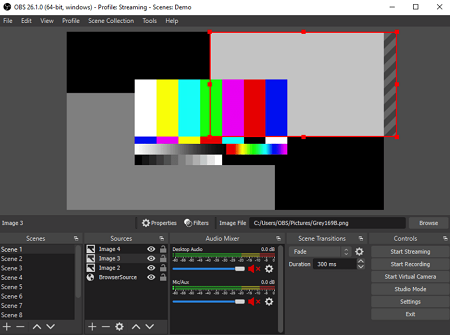
OBS
Power to the people, no delay preferred. This free, open-source encoding software is becoming more efficient and popular every day.
It’s compatible with tons of widgets, and companies are spending millions building products related to expanding the ever-evolving Open Broadcast Software ecosystem.
You have no reason to avoid downloading this. Just pick out one of the thousands of tutorials, and do a couple of test streams to gain some free hands-on experience.
vMix
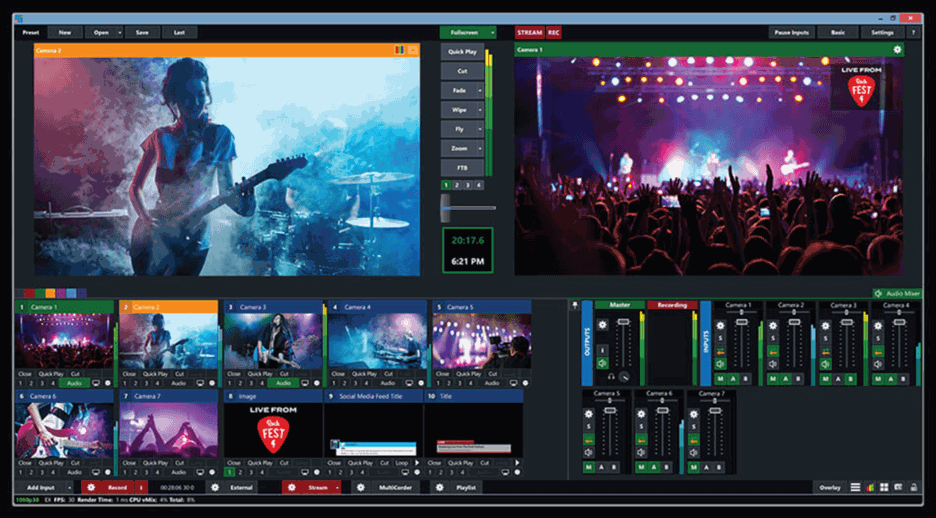
Meet the most popular professional switching and encoding software on the market. When jobs are looking for technicians, they almost always just ask for vMix operators, as it’s now the industry standard.
It works well with PCs, it’s trusted by some of the largest companies in the world, and, if you’re familiar with traditional switchers, you’ll feel at home in no time.
Tip: When asked why I don’t use OBS—which has legions of fans due to it being open-source and free—it’s as simple as this: With Wirecast, I have high-end paid support behind me provided by the company that owns it, Telestream. So, if it’s a personal project, OBS is the way to go. If the reputation of your client is on the line, I recommend using one of the pro software options.
Switcher
Keep with tradition and use a hardware video switcher to cut your show. In my experience it’s going to be the more reliable option vs software, it can replace the need for some capture devices, and can even be used simultaneously as a converter.

Blackmagic Design ATEM Mini Pro or Extreme
This is the only hardware switcher I’m including in this article, and one that also functions as a hardware encoding/streaming device. It was difficult for people to imagine the ATEM Mini’s use case when it launched, and the £400 price point raised some eyebrows—but now we know better. This thing is a production Swiss army knife.
There are higher-functioning switchers for bigger shows (especially if you’re looking for multiple M/Es), but they come with costly price tags, and, frankly, the ATEM Extreme will be enough for most of us. Now, please join me in asking Blackmagic Design to release a version that uses SDI!
Tip: As I’ve worked with the Blackmagic ATEM Mini Pro, I have noticed a drop in colour consistency when using the USB-C Out rather than the HDMI Out. Not a big deal for most audiences, sure. But use the HDMI Out for the best results.
Microphone
First things first. Two rules: Never the built-in laptop microphone. Never wireless headphones. Yes, you might have a great pair of wireless headphones that work flawlessly while you and your buds slay zombies online, but I’ve witnessed far too many issues to recommend their use for live streaming production.
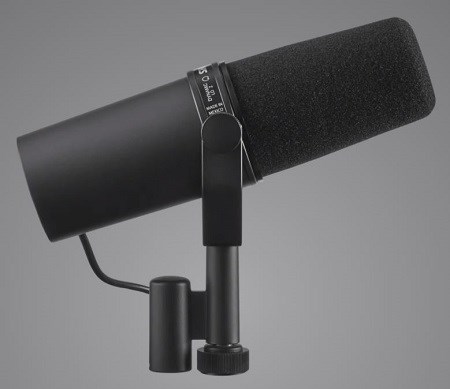
Shure SM7B
The best there is, and used regularly on shows that make millions and are seen by millions. Of course, I should mention it costs (checks notes) £300.
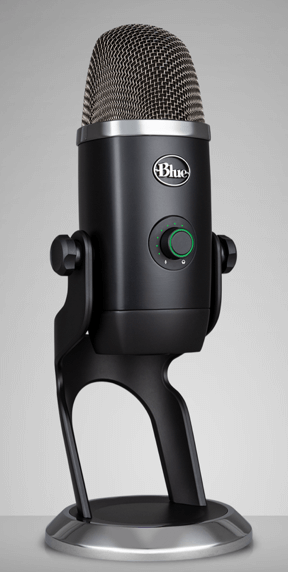
Blue Yeti X
They took the most popular microphone of the past decade and made some major enhancements. Blue improved the sound quality, updated some elements of the design, added a fourth condenser capsule, stepped up to 24-bit from 16-bit, and kept all the user-friendly functionality that made the original such a massive success. It’s only slightly more expensive than some of the competition, and it’s a great option for those shopping in the £100-£200 microphone market.
Elgato Wave:3
Great for beginners thanks to simple settings. Sounds pretty good right out of the box, and features “Clipguard” anti-distortion technology to protect you from peaking or clipping when you start screaming at your teammates because they’ve (once again) gone rogue. At £150 and with almost perfect customer reviews, Elgato wins again.
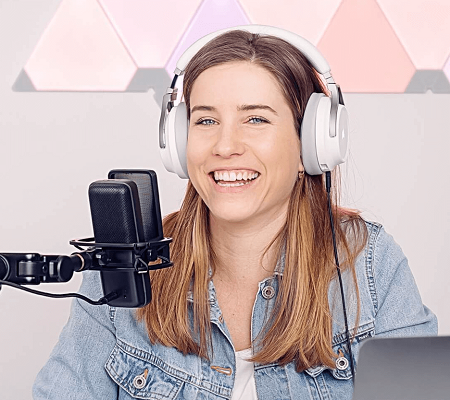
Tip: This is a big one, but not for the gamers. When you’re using Zoom, you’ll notice there’s no in-ear return of your own voice—you can’t hear yourself. When you’re doing a stream, like a conference or live news broadcast that involves bringing in guests via Zoom, use the computer attached to the microphone as the stream’s audio source. This allows you to talk to on-air guests without your voice making its way to the stream. Extremely helpful for countdowns and necessary updates!
Gadgets and Gizmos Aplenty
Here are some other gear recommendations that, while they don’t have their own sub-section, you might find extremely useful in helping you become part of the virtual world.
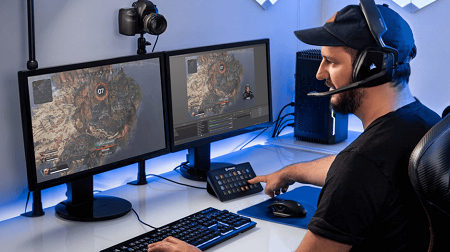
Elgato Stream Deck
Life gets significantly easier when you go crazy with the hot-keys. It’s incredible what you can simplify by integrating the Stream Deck into your workflow.
From triggering laugh tracks to tweaking lighting, these devices are true game-changers.
HDMI Splitters
I use three of these in my current streaming buildout. So. Many. Cables. But the ability to route your video signals is necessary, and, well, if you’re using an ATEM, pro-sumer cameras, and laptops as sources, then you’re dealing with HDMIs—a terrible cable in the grand scheme of production.
3.5mm Audio Switch
Let’s say you’re broadcasting live news or a conference. If you’re using an HDMI splitter to break off your main Zoom feed to an external monitor that has the all-important headphone jack, you can run one 3.5mm cable from that monitor—and another from your encoding computer—to a switch. That switch will allow you to instantly switch between monitoring the audio of your talent and the audio of your outgoing stream.
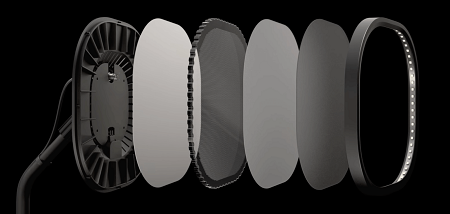
Elgato Key Light Air
Elgato, once again making its way onto this list, but this time for lighting. Soft, even light is the key to complementary production lighting and, for the price, these do a fantastic job. Remove that ring light from your cart, and purchase these instead.
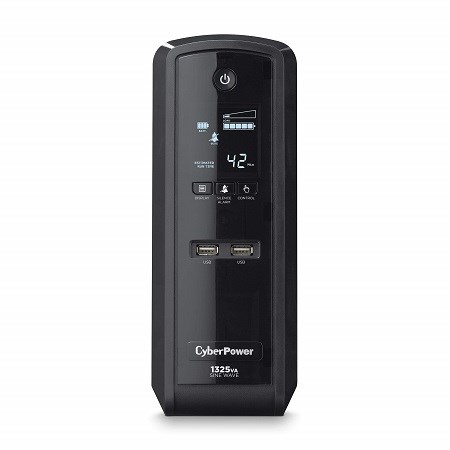
CyberPower Battery Backup & Surge Protector
The computers, HDMI splitters, switcher, lights, possibly your capture cards, and numerous other things will all need power, and you don’t want to rely on that old ratty surge protector with the ground ripped out of it. Instead, invest in a nice battery backup/surge protector. Plug all of your laptops into the surge protector since they already have a battery. Plug anything else, the items that might immediately affect your stream in the event of losing power, into the battery backup.
That’s a Wrap
Ultimately, the beautiful thing about our virtual present and future is how completely possible it is for anyone to become a player in the market. Anyone can now accomplish productions and global broadcasts from home that used to take an entire video truck with a staff of technicians. It’s amazing.
Once again, please check your university’s equipment-lending programmes for gear before spending a dime on a rental or purchase because gear depreciation is a real (expensive) bummer. Thanks for reading and I hope you enjoyed these streaming tips and gear recommendations!
About Lorensbergs and Connect2: Equipment booking software Connect2 from Lorensbergs supports equipment lending programmes in colleges and universities worldwide. Over 100 institutions use Connect2 to showcase, schedule and track their resources. It helps students to make the most of the video, audio and broadcast equipment available to them, build their kit lists, and achieve superior results in their productions.