
Managing Memory: The Ins and Outs of SD Cards

Almost as important as the footage you’re capturing is the storage device on which you’re recording that footage. That’s why we here at Connect2 have put together this deep dive into SD memory cards. With memory management being key to successful productions, it’s a vital part of planning every project and kit list.
So whether you’re supporting students or learning the ropes yourself, the following provides essential information to bookmark or share.
But first, before we get into the more technical aspects of the subject, let’s look at a few media storage-related best practices that will serve you well into your production future…
| You’re reading the latest media kit guide from Connect2 – supporting great equipment loaner services in Higher Education. Check out more on the Connect2 blog! |
Limit Points of Failure
It’s surprising how often inexperienced creators attempt to use memory cards that aren’t originally meant for their hardware of choice. Yes — adapters exist that allow you to use a mini or micro SD card in a standard SD card slot. And, yes — they’re great in a pinch, but this approach should never be your go-to production gameplan.
Make sure students remember—every adapter they add to their setup is an additional possible failure point in their workflow, another piece of gear to be lost, and another potential shooting-schedule stoppage. Speaking of ‘the right card for the right hardware’…
Trust the Manufacturers
SSD, CFAST, mini, micro, regular SD cards — how can you make sure students choose the right one? Encourage them to go to the source – or better still, link directly to it from your equipment reservation system. Most camera and recorder manufacturers have their recommended media-storage devices posted online.
Once the hardware is chosen, do a quick search to see the manufacturer’s recommendations, so you can rest assured you have a compatible product. Keep in mind, though, these lists may not always be totally up to date, as new cards are released all the time.
Here’s an example, via Blackmagic Design, of a storage-media compatibility list for the ever-useful Blackmagic Hyperdeck.

Formatting best practice: accept nothing less!
Whether they’re opening up a new off-the-shelf SD card or checking one out from your university’s equipment lending program, we all know the first thing they should do—and we mean immediately! After inserting the card into the device, they absolutely must format it.
In most cases, the camera won’t actually record until this step is completed. Nonetheless, skipping this step could be detrimental, say if the card was formatted to a file system structure that your camera recognizes, but that system isn’t compatible with the operating system (OS) of the computer they plan to use for post. Headaches abound in this scenario, so remind them to take a few seconds right off the bat to format the card to a system that your camera recognizes and one that works with the OS of the NLE.
Bonus tip: When using cards from your university’s lending program, it’s only best practice that they format the card again before returning it. It makes sure the footage is deleted and doesn’t end up in someone else’s hands. (Also, it’s just a considerate thing to do, right?) By the way, our case study from Leeds Trinity University has some further useful tips on managing SD cards as part of your cage or checkout services.
Words to the Wise

My mentor (who’s now a live-production professor) once told me that, when it comes to video, “If you only have one copy, be prepared to have zero. Redundancy is paramount.”
Hardware malfunctions, software crashes, and card-read errors are a real and fairly common threat to your project, especially in live production, where there are no second takes. That’s why, when live-event recordings are part of your contract, it’s vital to have a backup recording running independently of your main recording device. Doing so will help you remain calm and on track when disaster strikes and protect you from any liability issues.
Do your due diligence—as a rule, always review your footage before leaving a location, and check your audio if you’re running it separately. Then, set aside time to dump your data to multiple drives and/or the cloud. If you have a strong internet connection, dumping footage to the cloud is a smart way to ensure your footage is safe (and an efficient way to share dailies with external editors).
Get on the Same Page
During pre-production, there are a few steps you can take to ensure everyone involved is set up for success. Start by designating file naming conventions and organizational systems to be strictly followed by anyone handling footage.
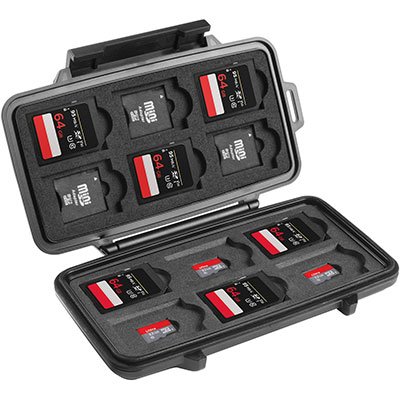
Additionally, keep multiple card readers on hand so you can dump multiple drives or cards simultaneously. (Plus, having backups will be a real sanity-saver in the event a reader is inevitably misplaced.) I also highly recommend a weatherproof, shock-resistant case, like the one above from the always reliable Pelican, to store, organize, and protect your media.
Main Media File Formats, 2024
Now that you’re taken those best practices and made them your own, let’s look at a rundown of today’s most widely used media formats.
exFat
This is more than likely what you want. Not only is exFat the safest file system around, it checks the boxes for what 95% of all users need. It’s designed for compatibility across different OS, including Windows, macOS, and Linux, and that broad compatibility is why It’s often used for external storage devices like SD cards and USB drives. It supports file sizes up to 16 exabytes and boasts a partition size limit of 128 petabytes. Basically, with exFat, file size will never be an issue.
HFS+
If you work solely within the macOS ecosystem, there might be benefits to using HFS+, as it’s well suited for Mac specific apps and workflows. It lacks the versatility of exFat, so triple-check all the stages of your post workflow before deciding on HFS+.
FAT32
FAT32 is for use with older devices that aren’t compatible with exFat. It’s also limited by its 4GB file size.
NTFS
Primarily used with Windows-based systems, NTFS is known for its advanced features like file permissions and encryption.
SD Card Symbology: What’s What
Here’s a definitive infographic guide to understanding all the numbers and symbols you see on the front of an SD card, courtesy of ProGrade, a manufacturer of truly excellent memory cards. Take a look, and read on for more details.
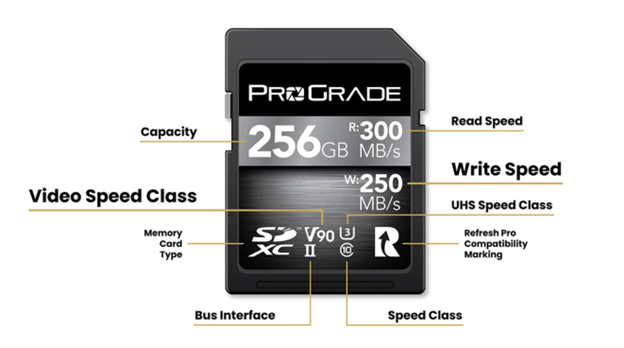
Capacity
This is the overall storage capacity of the SD card. Be sure to match the needed capacity of your card to your project. Depending on your recording bitrate, codec, and resolution, you could be looking at over 300GB just to capture an hour of 4k footage.
PRO TIP: Despite what many think, when it comes to storage, bigger is not always better. It’s important to research the device you plan to use, as there are some devices that won’t work with SD cards over a certain capacity. This is a common roadblock, for instance, for those wanting to use the handy Zoom H4N audio recorder, thanks to its max SD card size of 32GB.
Read Speed
This is the performance speed at which your SD card accesses information. Read speed matters when transferring data, playing back video clips, and loading/retrieving any files you need to scroll through and check on your camera.
Write Speed
This is the performance speed at which your SD card saves information—crucial for shooting video projects. In today’s production landscape, it’s a good idea to avoid buying or renting anything that can’t handle at least 4K. That means you’ll need a write speed of at least 30/mb/s or a UHS speed class of U3, (denoted in the graphic above by the number 3 inside the letter U) and a Video Speed Class of V30. As of now, you can get SD cards with a Video Speed all the way up to V90.
Bus Interface
Essentially, this tells you the speed at which your recording device interacts with your SD card. Look for the Roman numeral I, II, or III for UHS 1,2, or 3; the higher the number, the higher the rate of the data transfer speed.
Memory Card Type
The most important thing here is that you will need a card that’s SDXC—Secure Digital eXtended Capacity. SDXC cards allow for the powerful and previously mentioned exFAT versus an SDHC card that employs the dated FAT32 system (which isn’t ideal for video production).
For anyone working in film or video production, memory-storage management, smart footage-handling practices, and a strong understanding of devices like SD cards are critical. We hope this article helps with making informed decisions when purchasing memory cards or borrowing them from a university’s lending program. Now onto helping these students make something magical!